

Pop-up ads and intrusive notifications can annoy you on your Android phone. Luckily, you can stop these ads. This guide shows simple steps how to disable ads on android phone.
Follow these instructions to take control of your device. You will have fewer interruptions while browsing. You will also protect your privacy.
Understanding the Problem: What Are Pop-Up and Intrusive Ads?
Pop-up ads are unsolicited advertisements that appear suddenly on your screen, often while using apps or browsing the web. Intrusive ads are persistent and can appear as banners, full-screen overlays, or notifications, disrupting your activities.
These ads can be caused by:
- Malicious or poorly designed apps
- Browser settings allowing pop-ups
- Permissions granted to apps to display over other apps
- Adware or malware infections
Step-by-Step Guide to Disable Ads on Android
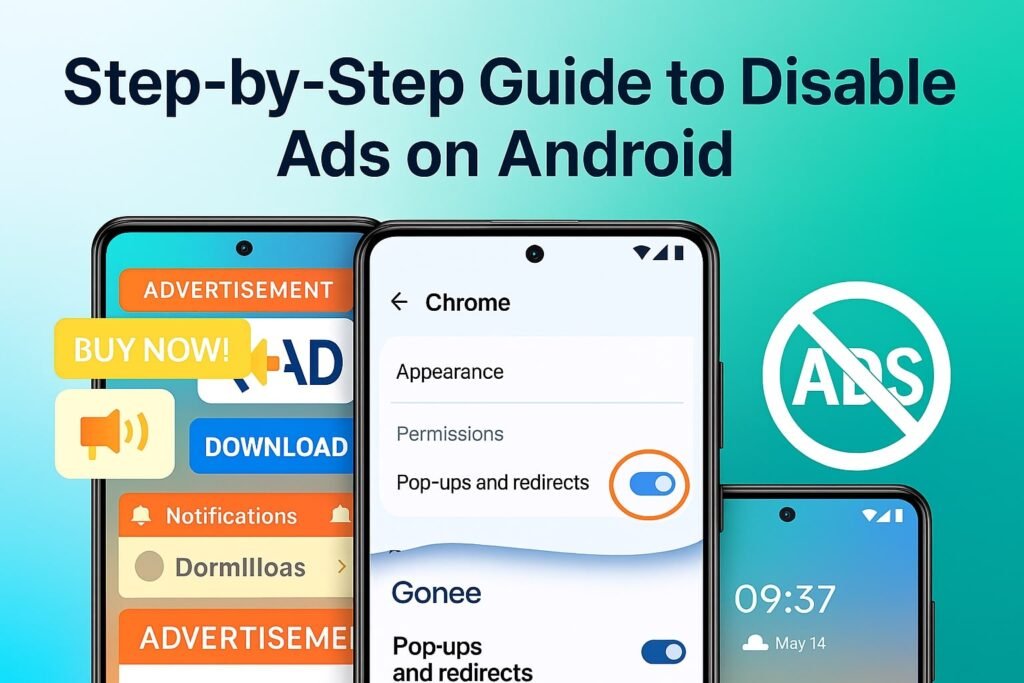
1. Disable Pop-Ups in Google Chrome
To prevent pop-up ads while browsing:
- Open the Chrome app.
- Tap the three-dot menu in the top-right corner and select Settings.
- Navigate to Site settings > Pop-ups and redirects.
- Toggle off the setting to block pop-ups.
This action will prevent websites from showing unwanted pop-ups in your browser.
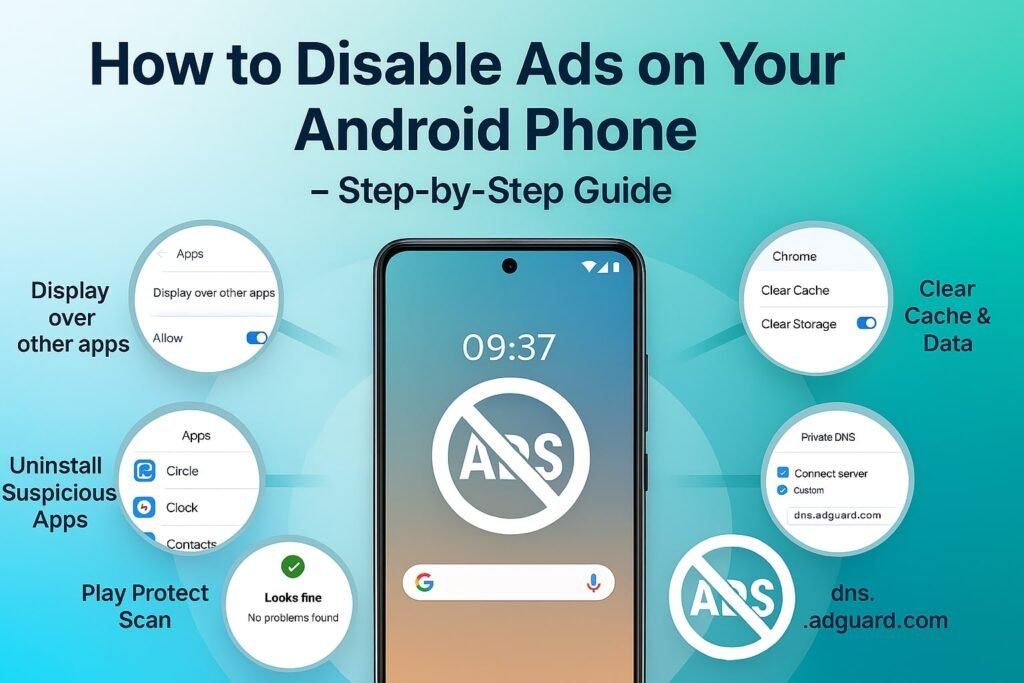
Revoke “Display Over Other Apps” Permission
Some apps may display ads over other applications:
- Go to Settings > Apps > Special app access.
- Select Display over other apps.
- Review the list of apps and disable this permission for any suspicious or unnecessary apps.
This will stop apps from overlaying ads on top of other applications.
Clear Browser Data in Chrome
Accumulated data can lead to unwanted ads:
- Open Settings > Apps > Chrome > Storage.
- Tap Clear Cache and Clear Data.
This will remove stored data that may be causing ads to appear.
Uninstall Suspicious or Unwanted Apps
Malicious apps can be a source of ads:
- Go to Settings > Apps.
- Review the list of installed apps and uninstall any that are unfamiliar or suspicious.
This will help eliminate apps that may be causing unwanted ads.
Use Private DNS to Block Ads System-Wide
Setting up a private DNS can block ads across all apps:
- Open Settings > Network & internet > Private DNS.
- Select Private DNS provider hostname and enter
dns.adguard.com.
This will route your internet traffic through a DNS that blocks ads.
Enable Google Play Protect
Google Play Protect scans apps for malicious behavior:
- Open the Google Play Store app.
- Tap the menu icon and go to Play Protect.
- Ensure that Scan apps with Play Protect is turned on.
This will help detect and remove harmful apps that may display ads.
Additional Tips to Prevent Ads
- Use Ad-Blocking Browsers: Consider browsers like Brave or Firefox Focus that have built-in ad blockers.
- Install Trusted Ad Blockers: Apps like AdGuard or Blokada can block ads across your device.
- Avoid Third-Party App Stores: Only download apps from trusted sources like the Google Play Store to minimize the risk of adware.
Comparison of Ad-Blocking Methods
| Method | Effectiveness | Ease of Use | Impact on Other Apps |
|---|---|---|---|
| Disable Chrome Pop-Ups | High | Easy | None |
| Revoke “Display Over Apps” | High | Moderate | May affect app features |
| Clear Browser Data | Moderate | Easy | Temporary solution |
| Uninstall Suspicious Apps | High | Moderate | Permanent solution |
| Use Private DNS | High | Easy | None |
| Enable Google Play Protect | High | Easy | None |
FAQS: How to disable ads on android phone
Q1: Why am I still seeing ads after following these steps?
A1: If ads persist, your device may be infected with adware or malware. Consider using a reputable antivirus app to scan and remove any threats.
Q2: Can I block ads in all apps?
A2: While some methods block ads system-wide, others may only affect specific apps or browsers. Using a combination of methods can provide more comprehensive ad blocking.
Q3: Will using a private DNS slow down my internet connection?
A3: Generally, using a private DNS like dns.adguard.com should not significantly impact your internet speed.
Q4: Are ad-blocking apps safe to use?
A4: Yes, reputable ad-blocking apps are safe and can enhance your privacy and browsing experience. Always download apps from trusted sources.
Q5: How can I prevent ads from appearing in my notifications?
A5: Adjust your app notification settings to block or limit notifications from specific apps.
Conclusion
Turning off ads on your Android phone makes browsing easier and safer. Follow the steps in this guide to block pop-up and annoying ads. Keep your phone updated and only install trusted apps to stay protected from unwanted ads.
Author Bio
This guide was written by Tech Shamim, a mobile technology expert with over 5 years of experience in Android device optimization and security. [Your Name] has contributed to various tech blogs and forums, providing practical solutions to enhance user experience and device performance.
References
- Google Support: Manage your ad privacy settings on Android
- Google Support: Remove unwanted ads, pop-ups & malware – Android
- Trend Micro: How to Stop Unwanted Pop-up ads on Android
- AVG: How Do I Stop Pop-Up Ads on My Android Phone?
- TechRadar: Best Ad Blockers of 2025
